


Access all your health information in one place.
LIVE EXTRAORDINARY


PROUD TO PARTNER WITH HUNDREDS OF COMMUNITY PROGRAMS ACROSS COLORADO.
We believe health care should mean a lot more than just medical care. That’s why we partner with local programs that help give Colorado communities greater access to crisis and behavioral health care, nutrition, health education, as well as traditional medical care.
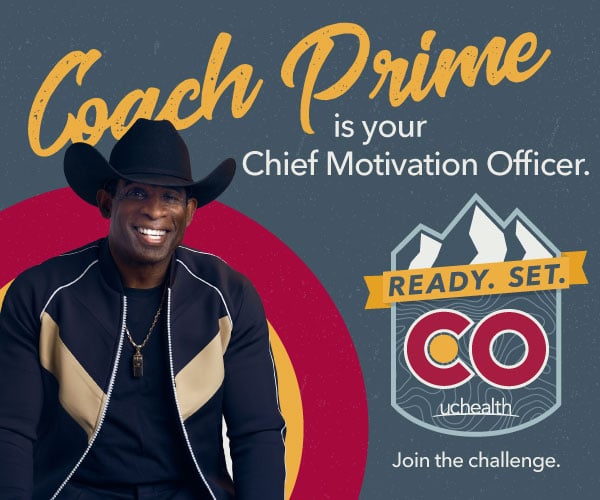


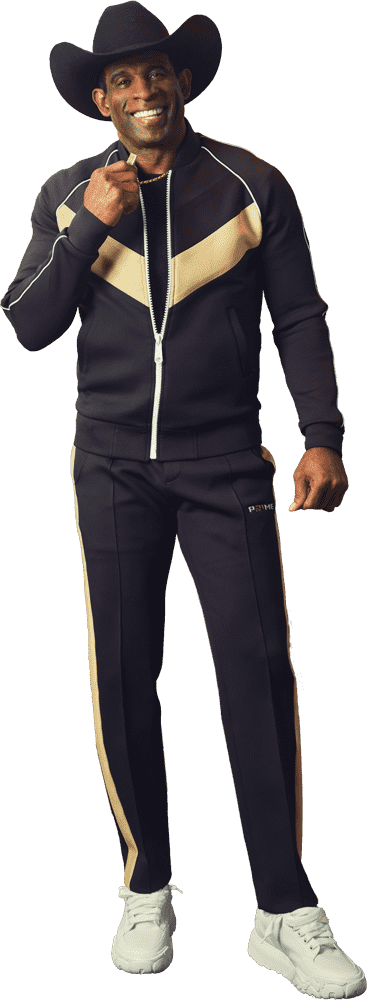
 It's Prime Time
to reclaim our spot as the healthiest state.
It's Prime Time
to reclaim our spot as the healthiest state.
FREQUENTLY ASKED QUESTIONS
Facility fees pay for everything at your hospital-based clinic and everyone on your care team other than the doctor or advance practice provider. Read more about facility fees and how they protect access to care across Colorado.
At UCHealth, we exist to help our patients live extraordinary lives. We’re just as committed to your health as we are to your healing.
From calling a clinic to finding the specific provider you’d like, we make scheduling easy. Schedule online now for a primary care visit or see all scheduling options.
With a My Health Connection (patient portal) account, you can refill prescriptions, view test results, view your medical record and more.
In order to provide access and transparent billing to as many people as possible, UCHealth works with major payers (insurance) and has helpful information for uninsured patients, along with providing you with the ability to get an estimate.
Our scheduling staff will coordinate with the clinic’s medical team to determine if it is best to have an in-person visit or conduct your appointment using a video appointment based on your condition and/or symptoms.
DOWNLOAD THE UCHEALTH APP
Access all your health information in one place.


Official Health Care Partner


Official Hospital of the U.S. Olympic and Paralympic Training Center, Colorado Springs

Every UCHealth partnership has a powerful reason to exist.
And every time you see the UCHealth brand at a big game, venue or event, you know that behind it is an army of people dedicated to the health and wellness of our state.


